Batch-tested COAsJanoshik verified99%+ purityDiscreet shippingShips next business dayResearch use onlyBatch-tested COAsJanoshik verified99%+ purityDiscreet shippingShips next business dayResearch use onlyBatch-tested COAsJanoshik verified99%+ purityDiscreet shippingShips next business dayResearch use onlyBatch-tested COAsJanoshik verified99%+ purityDiscreet shippingShips next business dayResearch use only
Every Batch 3rd Party HPLC TestedFree shipping over $300 · USA domesticOrder by 2pm EST- ships same business dayYou are on the official Royal Peptides website — verify the link3rd-party verified COAs · Same-day shipping
Choose USDC on Ethereum or Bitcoin at checkout.
USDC is our recommended option: the amount is simple to understand,
$1 USD = 1 USDC, and your payment is verified
automatically after it is sent.
Recommended
USDC · ETH
$1 USD = 1 USDC
A $150 order means you send exactly 150 USDC.
Fast flow
About 1 minute
Most customers can complete the send flow quickly in Cash App.
Verification
Automatic
Your order page keeps checking the blockchain after you send.
$
Option 01 · Recommended
USDC on Ethereum
Best for a simple exact-value payment.
Your order shows the exact USDC amount and the Royal receiving address.
In Cash App, paste the wallet where you would normally enter a recipient,
select Ethereum, and send.
₿
Option 02
Bitcoin
Prefer Bitcoin? Your order page displays a live BTC amount
and receiving address. Send the exact quoted BTC amount
using the standard Bitcoin network.
USDC · Step-by-step
How to pay with USDC
The entire payment is completed inside Cash App.
Keep your Royal order page open so you can copy the exact amount
and receiving wallet and watch the payment status update automatically. Ensure you have a Cashapp Balance to cover the transaction. *Not available in NY state.
Ethereum · ERC-20
$
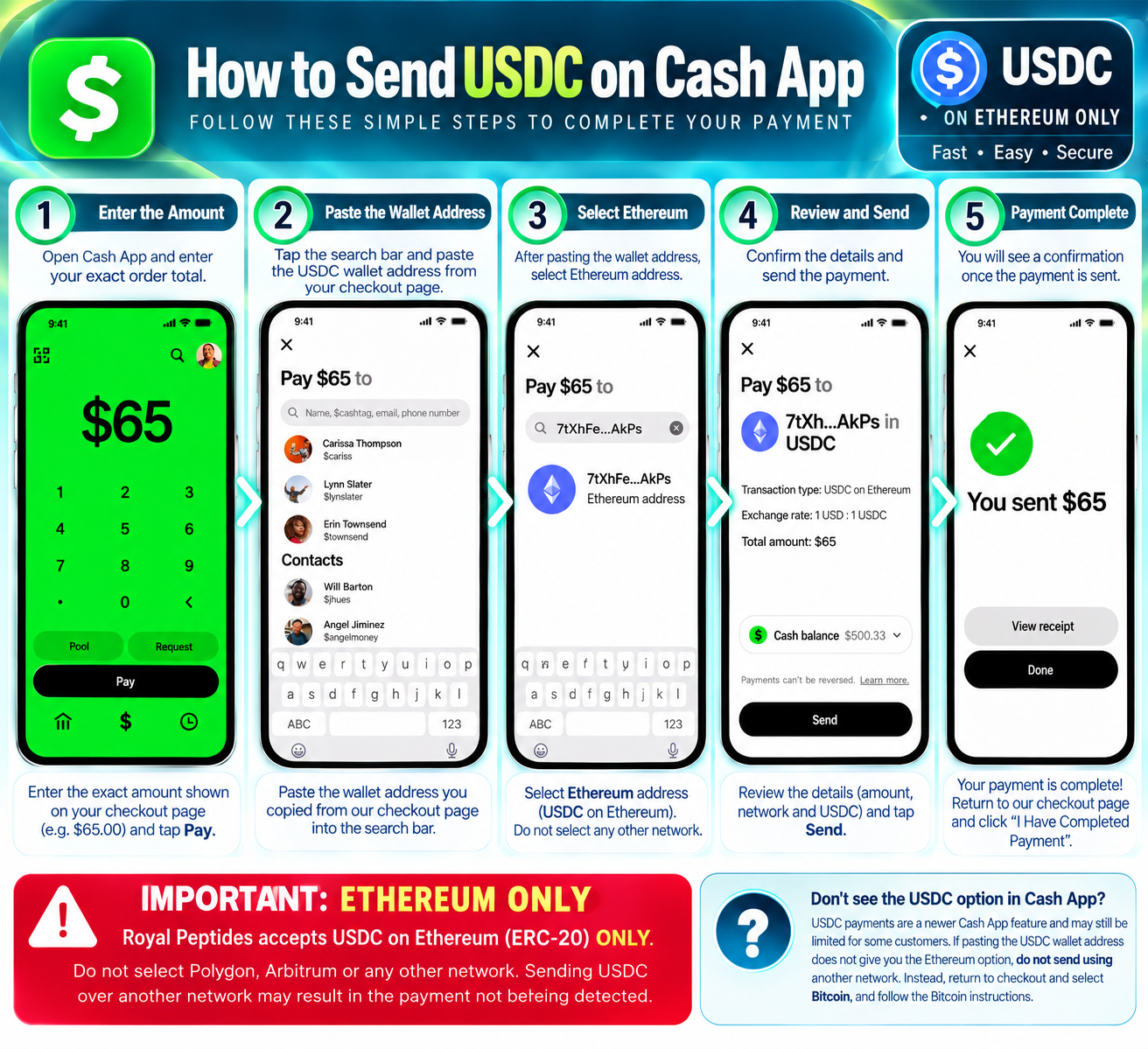
Cash App Visual GuideFollow the picture below from left to right.
Ethereum Only
Don't see the USDC option in your Cash App?
USDC is a newer Cash App rollout and may not yet be available
on every account. If the USDC option shown above does not work,
do not send using another network.
Use Bitcoin instead and follow the Bitcoin instructions below.
Select USDC · Ethereum on the Royal payment page.
It is selected by default because it is the simplest option.
Recommended
2
Read your exact amount
Your Royal order shows the amount to send.
Because $1 USD = 1 USDC, a $150.00 order displays
150.00 USDC.
Use exact amount
3
Open Cash App
Open Cash App and begin a payment.
Enter the amount first, just as you would for a normal Cash App payment.
Normal send flow
4
Paste our receiving wallet
When Cash App asks who you are paying,
paste the USDC wallet address shown on your Royal order
where you would normally enter a recipient or $Cashtag.
Copy · Paste
5
Select USDC + Ethereum
Choose USDC and make sure the network is
Ethereum.
Verify this before approving the transfer.
Ethereum only
6
Send and return to your order
Confirm the transfer in Cash App, then return to the Royal payment page.
The listener will continue checking automatically.
Auto verification
Example: $150.00 order → send exactly 150.00 USDC
Your payment page calculates and displays the exact amount
for your own order.
$1 USD = 1 USDC
!
Use Ethereum only for the Royal USDC payment.
Do not choose Base, Solana, Polygon, Arbitrum,
or another network.Crypto transfers can be irreversible,
so always verify the network,
wallet address and amount before sending.
Bitcoin · Alternative
How to pay with Bitcoin
Bitcoin is available as a second Cash App payment option.
Your Royal order page creates a live BTC quote
and shows the exact amount and on-chain receiving address.
Bitcoin · On-chain
VISUAL WALKTHROUGH
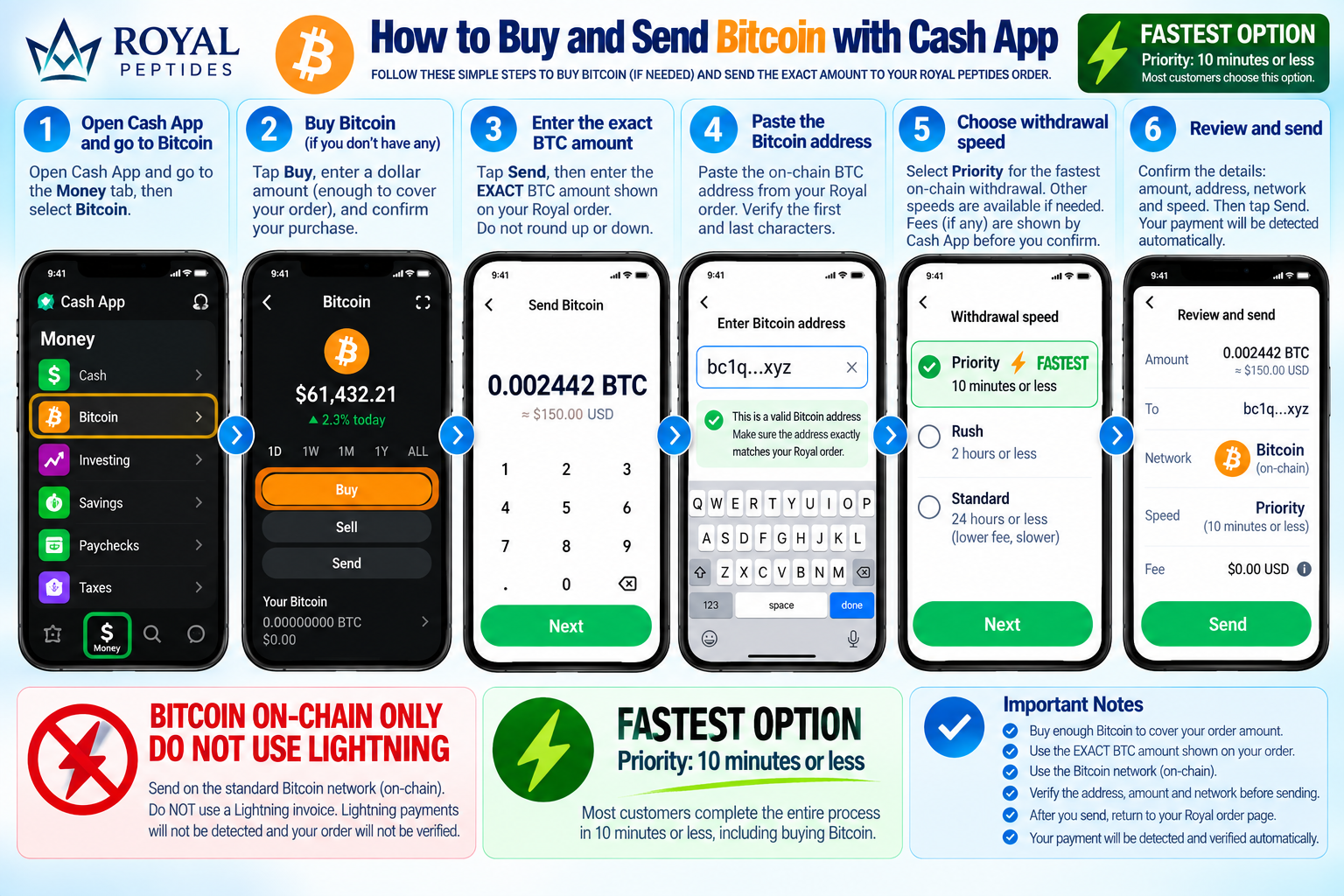
Cash App Bitcoin Picture Guide
Buy Bitcoin if needed, then send the exact BTC amount shown
on your Royal Peptides order.
₿ Bitcoin On-Chain
⚡
Use Bitcoin on-chain only — do not use Lightning.
For Cash App's fastest listed on-chain withdrawal option,
choose Priority — 10 minutes or less.
Always use the exact BTC amount and Bitcoin address shown on your order.
1
Select Bitcoin
Choose Bitcoin on the Royal payment page.
Your exact BTC quote and receiving address will appear.
2
Open Bitcoin in Cash App
In Cash App, open your Bitcoin section
and choose the option to send Bitcoin
to an external address.
3
Use the exact BTC amount
Copy the full BTC amount shown on the Royal payment page.
Do not round it up or down.
Exact quote
4
Paste the Bitcoin address
Paste the on-chain BTC receiving address from your order.
Verify the first and last characters before sending.
5
Use the Bitcoin network
Send on the standard Bitcoin network.
Do not use a Lightning invoice for the Royal on-chain BTC address.
BTC network
6
Wait for confirmation
After the transfer is detected,
your order page will show that payment is verifying
while the required network confirmation arrives.
i
BTC quotes are time-sensitive.
Always use the current BTC amount shown
on your Royal payment page.If a quote has expired,
reopen the payment page and use the refreshed amount.
After you send
Your order page keeps watching.
You do not need to repeatedly refresh the page.
Payment verification continues automatically.
1 · Waiting
The listener checks for a payment matching
your order amount and receiving wallet.
2 · Payment detected
Once the transaction is found,
the page changes to verification status
and can show the blockchain transaction.
3 · Order confirmed
After verification,
your WooCommerce order is released
for processing automatically.
Exact details
Use the information on your own order
Amounts and receiving addresses are displayed
on your payment page and order email.Do not reuse payment information
from an old order or screenshot.
Payment not updating?
Manual transaction verification is available
If you already sent payment and the automatic listener
has not updated, expand the transaction-ID section
on your order page and paste the transaction hash.
Email backup
Your order email includes the payment details
The confirmation email contains your amount,
network, receiving address
and a link back to this Cash App guide.
Before you send: verify amount · address · network.
USDC customers should see Ethereum.
Bitcoin customers should use the standard Bitcoin network.